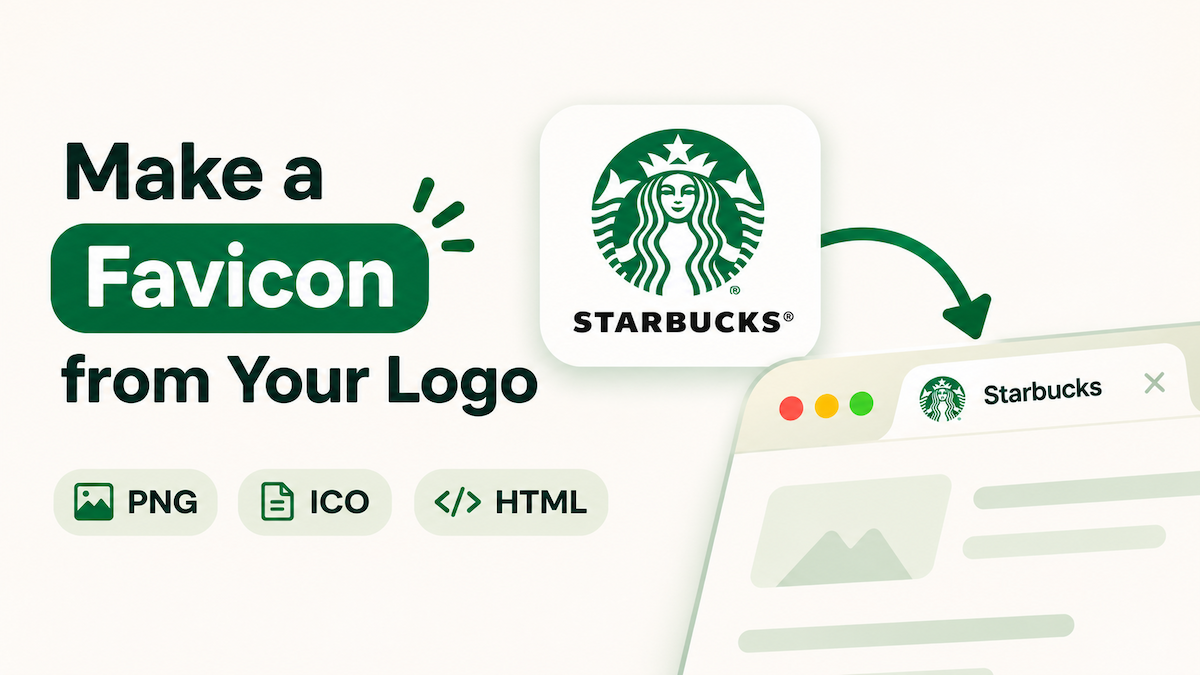
Your logo may look perfect on a homepage and still disappear inside a 16-pixel browser tab. A favicon is the smallest version of your brand, so it needs a different kind of preparation: fewer details, stronger contrast, and a shape that remains recognizable at a glance.
The good news is that you do not need to redraw your identity. You can start with the logo you already use, isolate the strongest symbol, and create a complete favicon set for browsers, search results, bookmarks, and mobile home screens.
What a Strong Favicon Has in Common
- One clear idea. A single icon, letter, or monogram survives reduction better than a full wordmark.
- Enough contrast. The mark should remain visible in both light and dark browser themes.
- Simple edges. Thin strokes and tiny gaps often turn into blur at 16 pixels.
- Consistent character. The favicon should feel like your brand, even when the full logo is not visible.
Choose the Right Part of Your Existing Logo
Use the symbol before the wordmark
A wordmark can be too wide to read in a square. If your logo includes an icon, emblem, or distinctive first letter, start there. A favicon is a recognition cue, not a miniature billboard.
Keep the crop intentional
Leave a little breathing room around the mark, but do not shrink it until the icon becomes a tiny dot. The most useful crop is square, centered, and balanced when viewed at the real output size.
Prepare a clean source
Use the sharpest PNG, JPG, or WEBP export you have. A transparent background is helpful when the favicon sits on different browser themes. If the source is noisy or low resolution, clean it up before you generate the final files.
Create a Favicon Set in a Few Minutes
LogoAI's free Logo to Favicon tool turns an existing logo into a browser-ready package.
- Upload your logo. Choose a clear PNG, JPG, or WEBP file, or paste the logo from your clipboard.
- Adjust the smart crop. Keep the complete symbol inside the square and check the padding around the edges.
- Pick a background and shape. Test transparent, solid, and rounded options against the places where the icon will appear.
- Review real-size previews. Check light and dark tabs, search results, and phone home screens before downloading.
- Download the package. The tool groups the required PNG, ICO, Apple touch icon, and manifest files together.
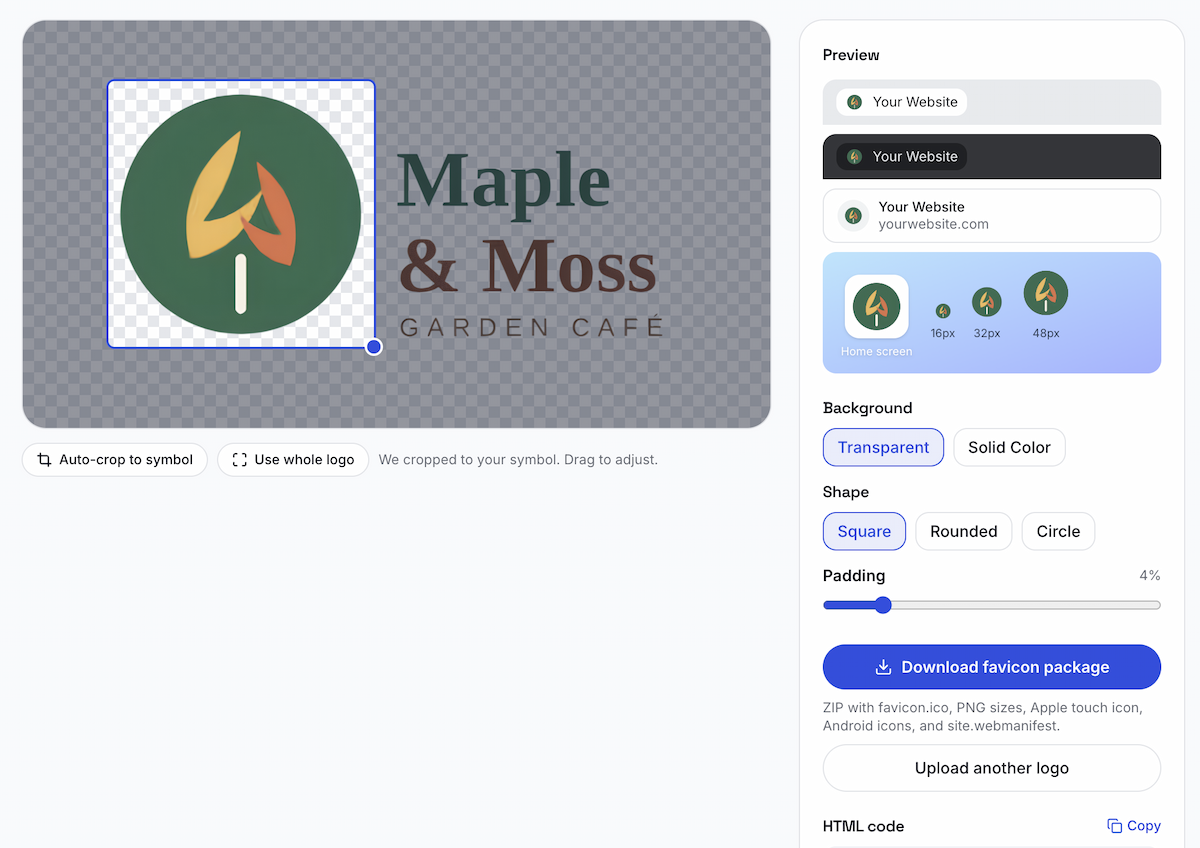
The preview is where you catch problems that are hard to see in a large editor. If the 16-pixel version looks muddy, simplify the crop or switch to a stronger symbol instead of enlarging the preview.
Know Which Favicon File Does What
A complete package prevents gaps between browsers and devices. These are the files most websites need:
| File | Best use |
|---|---|
favicon.ico | Browser tabs, bookmarks, and older browser fallbacks |
favicon-16x16.png | Small browser tabs |
favicon-32x32.png | Larger tabs and search interfaces |
apple-touch-icon.png | iPhone and iPad home screens |
android-chrome-192x192.png | Android home screen shortcuts |
android-chrome-512x512.png | Installed web apps and splash screens |
site.webmanifest | Declares icons and display settings for supported browsers |
Add the Icons to Your Website
Upload the generated files to the location your website serves publicly. Then place the icon references inside the page's <head> element:
<link rel='icon' href='/favicon.ico' sizes='any'>
<link rel='icon' type='image/png' sizes='32x32' href='/favicon-32x32.png'>
<link rel='icon' type='image/png' sizes='16x16' href='/favicon-16x16.png'>
<link rel='apple-touch-icon' href='/apple-touch-icon.png'>
<link rel='manifest' href='/site.webmanifest'>
Use the generated snippet as the source of truth for filenames and paths. If you serve favicon.ico from the site root, many browsers will find it automatically, but explicit links make the other sizes available too.
Test the Favicon After Deployment
Check more than the browser tab
Open the live page and inspect the tab, bookmark menu, address bar, and search preview where applicable. Then open the site on a phone and add it to the home screen. The icon should look intentional in every context.
Test light and dark backgrounds
A mark that looks crisp on white can disappear on a dark tab. Preview both themes, especially if your logo uses a dark green, navy, or thin outline.
Clear the cache before redesigning
Favicons are cached aggressively. If the new icon does not appear, hard refresh the page, open a private window, or test in another browser before changing the artwork again.
Verify paths and deployment
When an icon is missing, the cause is often a filename mismatch, a wrong root path, or a file that was not included in the deployment. Open the icon URL directly in a browser to confirm it is publicly reachable.
Common Favicon Mistakes to Avoid
- Using the full logo at tiny size. Text that reads well in a header can become visual noise in a tab.
- Leaving too little contrast. Similar foreground and background colors are hard to recover at 16 pixels.
- Skipping the transparent version. A baked-in white box can clash with dark browser UI.
- Testing only one file. A clean 32×32 PNG does not guarantee a good Apple touch icon or Android shortcut.
- Changing the brand mark too much. Keep the favicon related to your logo so returning visitors recognize it.
A Practical Favicon Checklist
- Start with a clean, high-resolution logo file.
- Choose the most recognizable symbol or monogram.
- Make sure the crop is square and has balanced padding.
- Review 16×16 and 32×32 previews in light and dark contexts.
- Download the complete icon and manifest package.
- Add the generated links to your site's
<head>. - Test the live page, mobile home screen, and a second browser.
Give Your Existing Logo a Better Small-Size Version
A favicon does not need to be a second logo. It needs to be the clearest small-size expression of the brand you already built. Start with the strongest part of your mark, test it at the size people will actually see, and let the generated package handle the browser and device variations.
Ready to try it? Open the Logo to Favicon tool, upload your existing logo, and create a complete favicon set without a redesign.
Ready to Create Your Own Logo?
Turn your brand name into professional logo concepts in seconds with LogoAI.